
How to access a project phase
Written by Nutcache Team
Updated
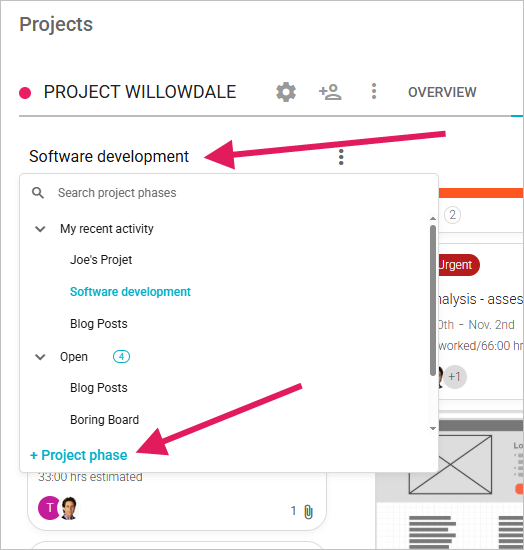
We have reorganized the project phase tab of the project to make it easier to access and more efficient. First, the Project phase tab allows you to access the collaborative project phase of your choice directly from the project by using the drop-down list located at the top left of the Empêcher les membres réguliers de modifier les temps estimés. You can also create a new project phase from the drop-down list:
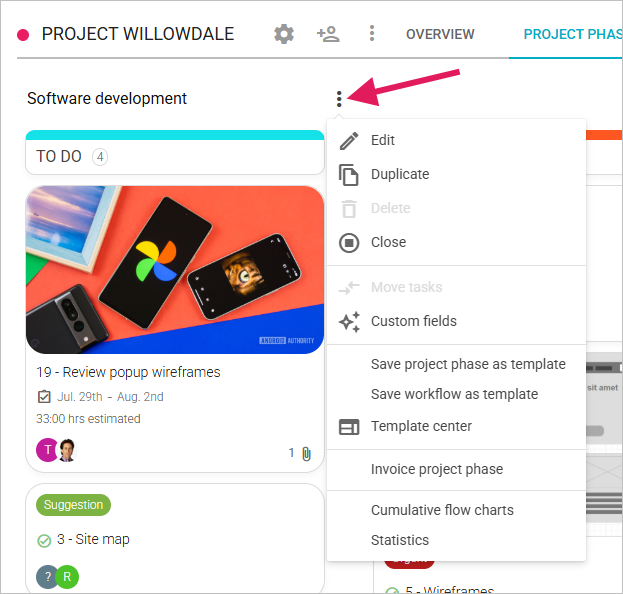
The projetct phase Options menu contains all the usual options related to a project phase, such as Edit, Duplicate, Delete, Close, etc.:
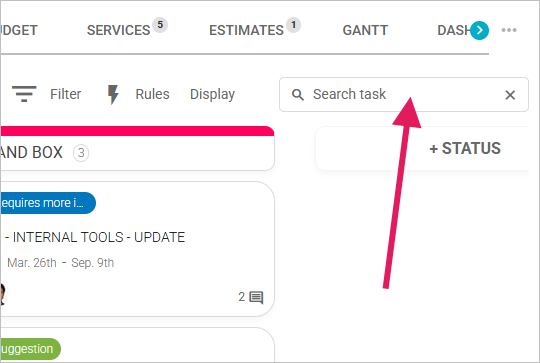
The search feature offers various options to search information across all tasks contained in a project phase:
Statuses and tasks
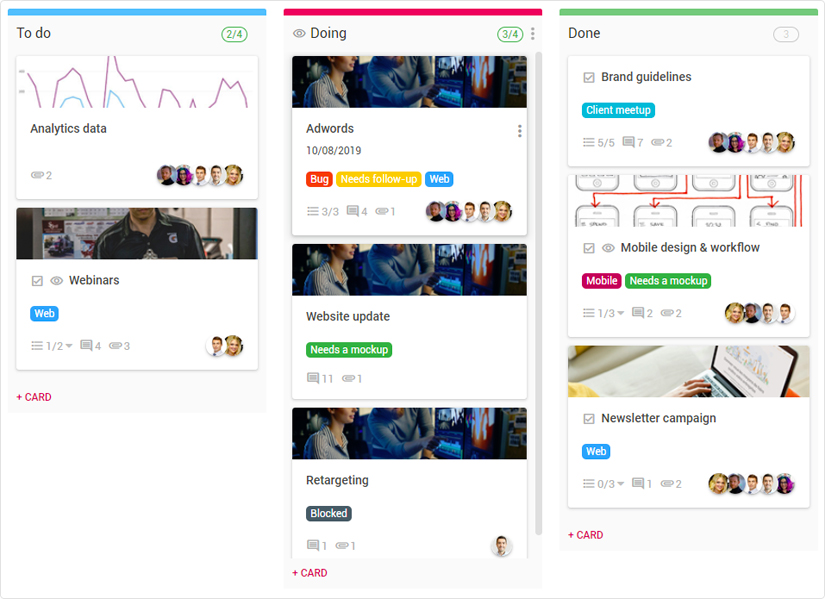
Both statuses and tasks have been reviewed and streamlined to make it easier to identify relevant information and to provide an overview of the on-going and pending tasks.
The Statuses
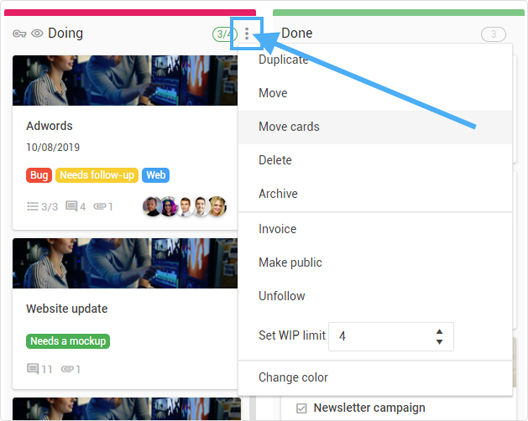
The status options are located in the upper right-hand corner of the status. Just hover over the status to bring up the option menu. These options provide a number of actions related to the status such as Duplicate, Move, Delete, Delete, Invoice, etc.
The tasks
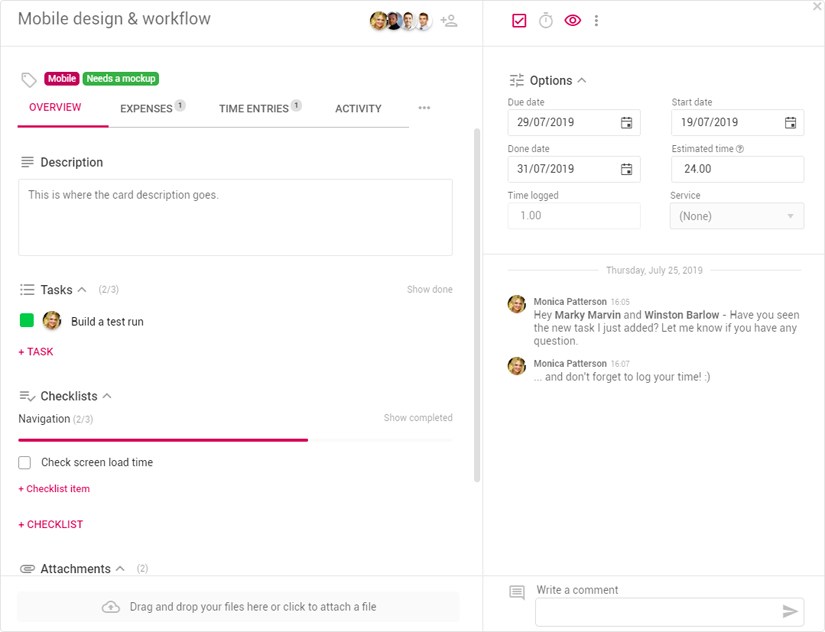
The Nutcache tasks let you gather all the information related to a certain task, but also promote team collaboration by making it easy to comment on the work in progress and to call out (using @mentions) your teammates.
To learn more about to use tasks, please refer to this article.
Need a hand?
Our team can help you find the answer.
Contact us