
How to link tasks and expenses to QuickBooks Online
Written by Nutcache Team
Updated
Overview
Nutcache’s integration with QuickBooks Online allows you to link billable tasks and expense categories to corresponding items in QuickBooks. This ensures your exported invoices remain accurate and consistent when billing projects per task in Progressive mode.
💡 This feature is available to users with Administrator or higher permissions on the Enterprise plan.
Linking Tasks to QuickBooks Services
Purpose
By linking your billable tasks to QuickBooks services, you ensure that every line of your task-based invoice corresponds to the correct service in QuickBooks.
How It Works
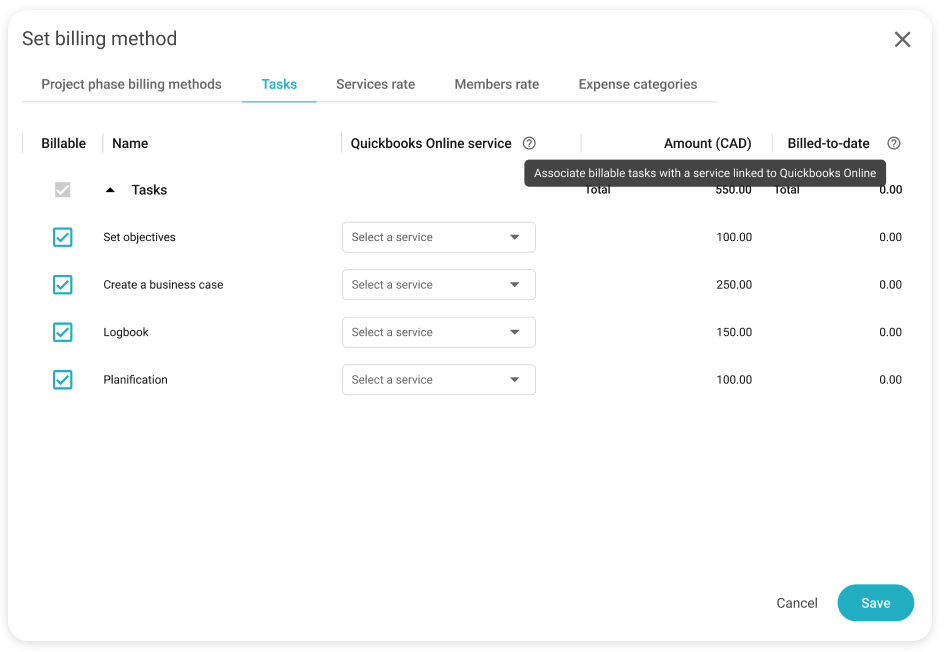
Given the Quickbooks Online integration is activated and the project is set to Progressive billing and Per task, a new column labeled QuickBooks Online service appears in the Tasks tab of the Set Billing Methods pop-up.
Each editable cell in this column contains a dropdown menu showing the Nutcache services currently linked to QuickBooks Online.
Select the appropriate service to associate it with your billable task.
Additional Details
A tooltip appears when hovering over the column header:
“Associate billable tasks with a service linked to QuickBooks Online.”
Cells are disabled if:
The task is non-billable, or
The task has already been invoiced.
If no QuickBooks services are linked, the dropdowns remain disabled, and an icon with the tooltip appears:
“No active service found. To use this option, first link a Nutcache service to a QuickBooks Online item.”
Linking Expense Categories to QuickBooks Products
Purpose
This option lets you associate your expense categories with QuickBooks products, ensuring expense-related invoice lines are exported accurately.
How It Works
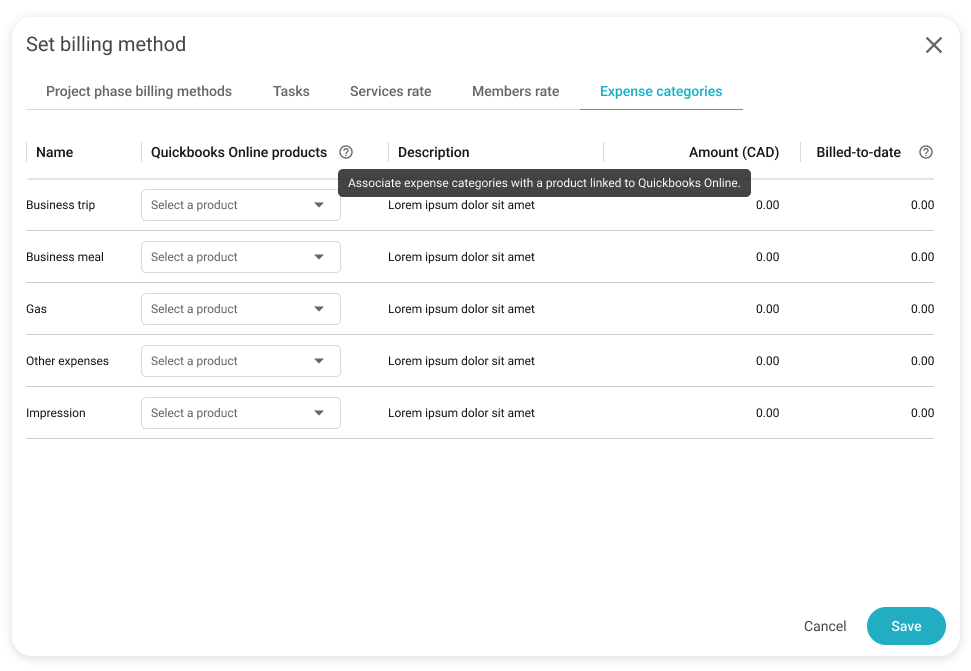
Given the Quickbooks Online integration is activated and the project is set to Progressive billing and Per task, a new column labeled QuickBooks Online product appears in the Expense Categories tab of the Set Billing Methods pop-up.
Each editable cell in this column provides a dropdown list of Nutcache products already linked to QuickBooks Online.
Choose the appropriate product to associate with each expense category.
Additional Details
A tooltip appears when hovering over the column header:
“Associate expense categories with a product linked to QuickBooks Online.”
Cells are disabled if:
The expense category has already been invoiced.
If no QuickBooks products are linked, the dropdowns are disabled and display an icon with the tooltip:
“No active product found. To use this option, first link a Nutcache product to a QuickBooks Online item.”
Important Information
These settings ensure that tasks and expenses are mapped to the correct QuickBooks items during invoice export.
Linking helps maintain consistency between Nutcache’s internal billing structure and your accounting data in QuickBooks Online.
Only Administrator+ users can modify these mappings.
Need a hand?
Our team can help you find the answer.
Contact us