
How to invoice by task
Written by Nutcache Team
Updated
Overview
The Invoicing by task feature gives project managers greater flexibility and precision when billing progressive projects based on individual tasks. It simplifies how billing information is displayed, managed, and preserved across templates, duplications, and invoices.
This feature is available to users with Project Manager or higher permissions on the Enterprise plan.
Key Capabilities
Task Billing Information
Alphanumeric Invoice Ordering
Manual Percentage Entry for Invoices
1. Task Billing Information
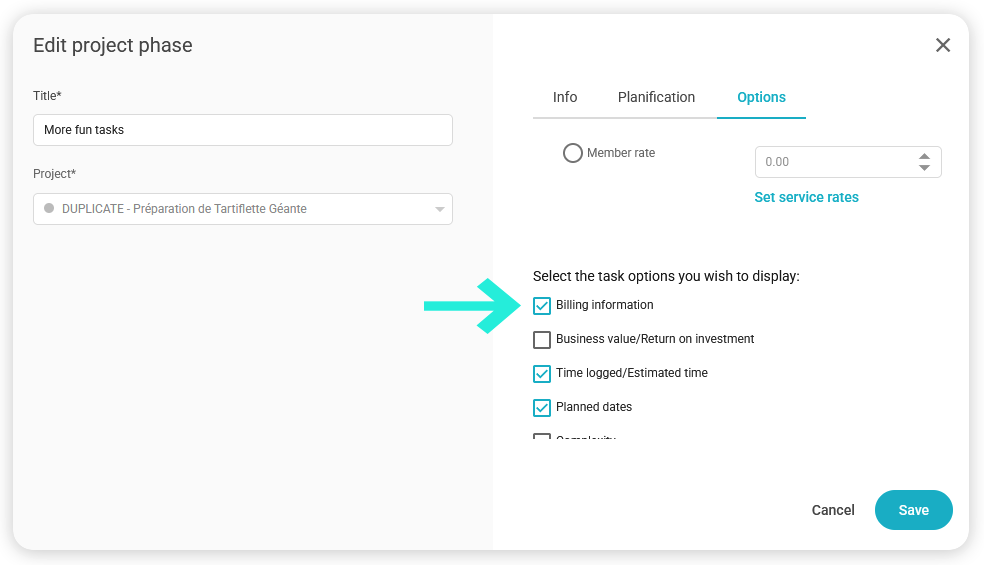
Billing Information Checkbox
When a project phase is set to progressive and per task, and the tasks are billable:
A Billing Information checkbox appears first in the task options list.
It is checked by default and retains its state even when toggling between billable and non-billable phases.
Task Pop-up (Project Manager+)
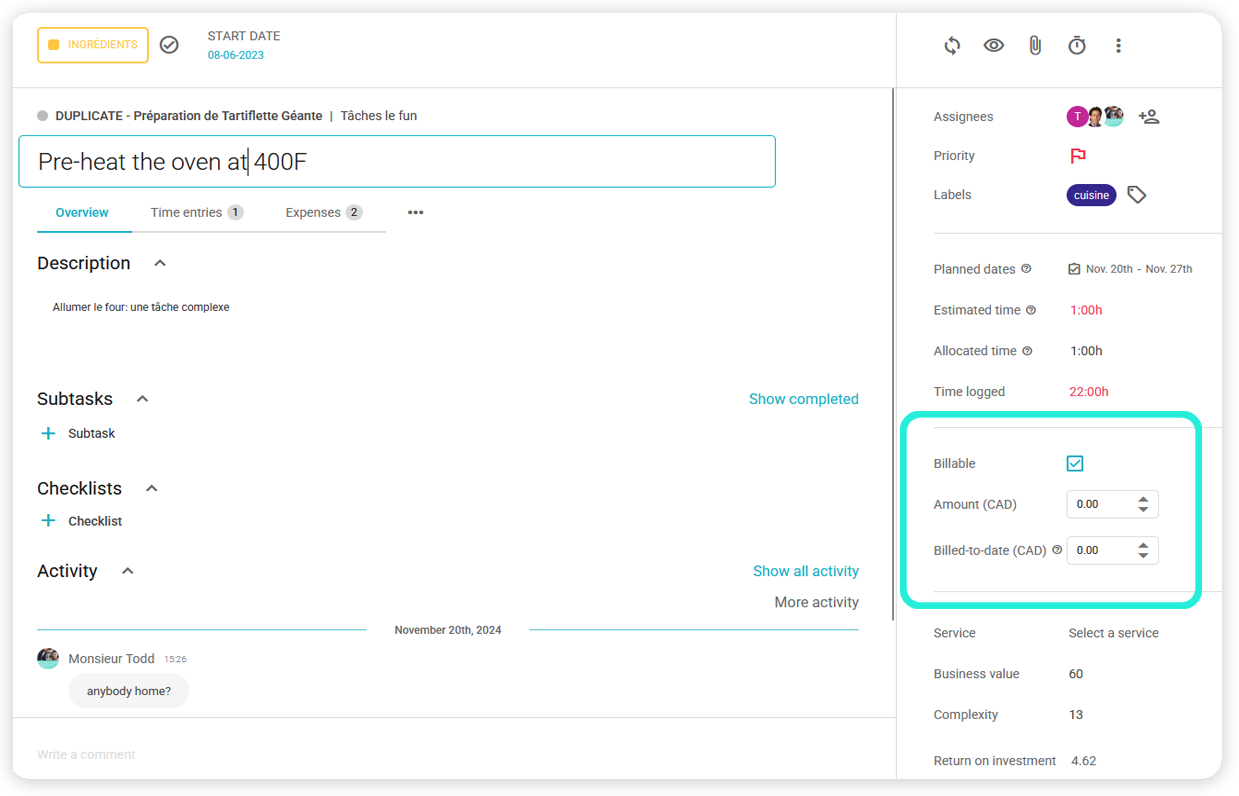
When opening a task:
The pop-up displays the following billing fields:
Billable
Amount (currency)
Billed to date (currency)
These fields follow standard editability rules (only accessible by Project Manager+ users).
Regular members do not see billing-related fields.
Template and Duplication Support
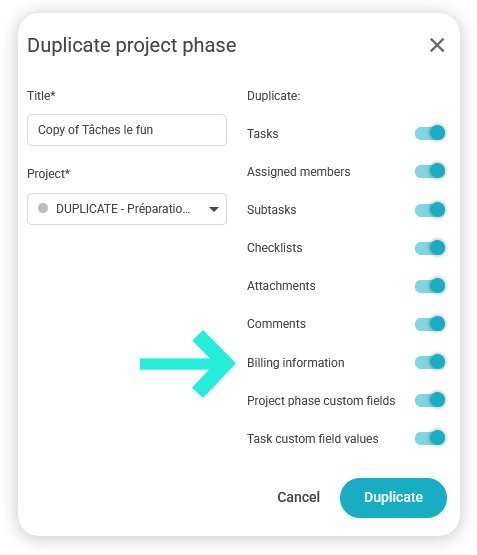
The Billing Information setting appears in all relevant pop-ups for:
Save or Duplicate Project
Save or Duplicate Project Phase
Duplicate Task
When creating or duplicating any of these entities, Nutcache preserves:
The Billing Information display option
The associated task-level billing field values
2. Alphanumeric Invoice Ordering
For progressive projects invoiced per task:
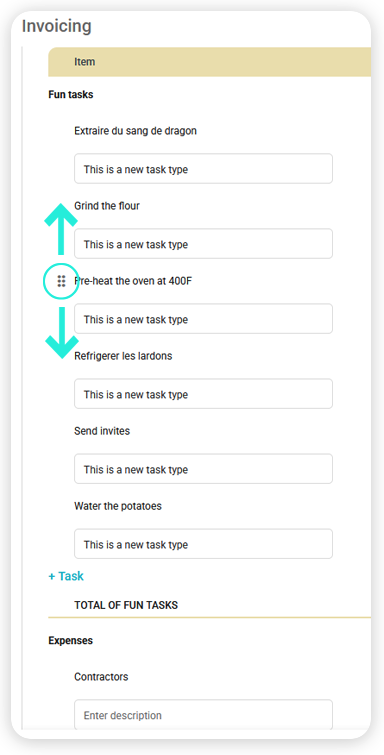
When an invoice is generated (via +Invoice, Invoice Project, Invoice Phase, or Invoice Status), all invoice elements are displayed in alphanumeric order.
Ordering Rules
Project phases: sorted alphanumerically according to the chosen grouping (by phase or by billing method).
Tasks within each phase: sorted alphanumerically.
Expense categories: sorted alphanumerically.
3. Manual Percentage Entry for Invoices
When editing an invoice for a progressive, per-task project:
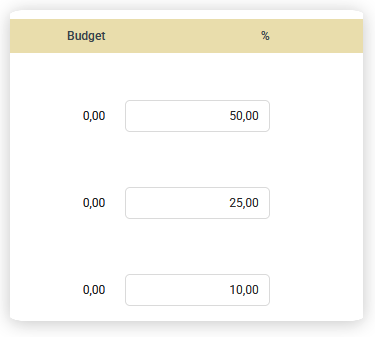
The % (percentage) field in the invoice line is editable if the invoice is in Draft or Not created status.
Changing the percentage automatically updates related values:
Formula:
Current = ((% × Budget) / 100) – Previous amount
Constraints
The percentage cannot be lower than:
100 × (Previous amount / Budget)
This ensures the Current value never becomes negative.For invoices beyond Draft, all % fields are locked (read-only).
Acceptance Criteria
Area | Expected Behavior |
Billing Information Checkbox | Displayed first, checked by default, retains its state, visible/editable only for Project Manager+. |
Template & Duplication | Checkbox included in all Save/Duplicate pop-ups; values persist when creating or duplicating entities. |
Invoices | All project phases, tasks, and expenses sorted alphanumerically. |
Manual Percentage Entry | Editable only for Draft/Not created invoices; automatically updates dependent fields; disabled for other statuses; prevents negative “Current” values. |
Further reading:
How to invoice by task - Settings
Need a hand?
Our team can help you find the answer.
Contact us