
How to manage mileage expenses
Written by Nutcache Team
Updated
Overview
Nutcache allows you to manage mileage-based costs using a dedicated Mileage expense option combined with a Mileage expense category.
When this option is enabled, the expense form automatically adjusts to display the fields required to correctly calculate mileage expenses.
This ensures accurate calculations, consistent data entry, and proper inclusion of mileage expenses in projects, tasks, and invoices.
Who can use this feature?
Owners and administrators have full access to the Expenses. Project managers and Regular members can access, create and edit expenses they’re assigned to.
Available on all plans where expenses are enabled
Where can I find this feature?
Mileage expenses can be created from:
The Expense Maintenance screen
Inside a Project
Inside a Task
How to create a mileage expense
From the Expense Maintenance screen
Go to Expenses.
Click New expense (or open an existing expense to edit it).
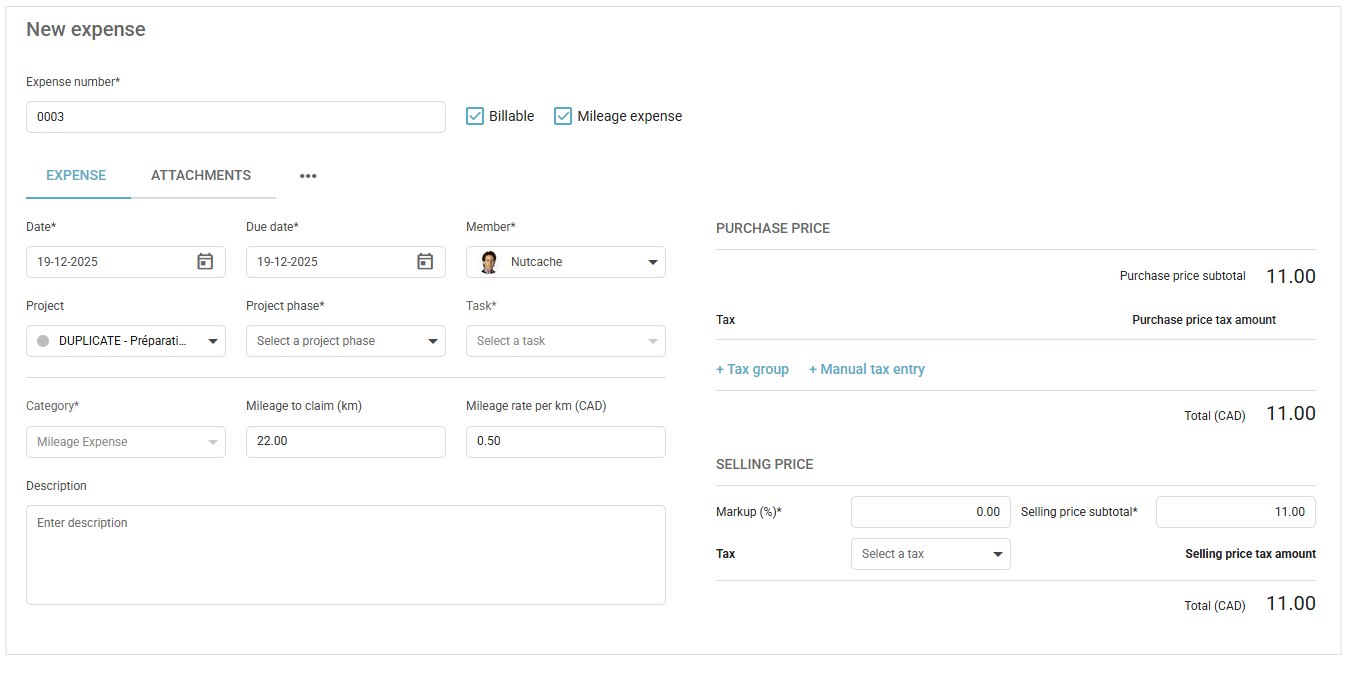
At the top of the form, enable the Mileage expense option.
Complete the expense details as for a regular expense.
From the Category drop-down list, select Mileage.
Expense categories are displayed in alphabetical order.
Mileage to claim: Enter the total distance traveled.
Mileage rate: Enter the rate per distance unit.
What happens when Mileage is selected
Once the Mileage expense option is enabled and the Mileage category is selected, the expense form automatically adapts.
Left side of the form
Supplier becomes Mileage to claim (km)
Mileage rate per km (CAD) appears
Right side of the form
Purchase price subtotal is replaced by an automatically calculated amount.
The total is calculated dynamically based on:
The number of kilometers entered
The selected rate per kilometer
The calculated amount updates instantly as values are modified.
Once you’ve completed all the fields, click the Save button. This will save the expense and unlock additional tabs and options for further management, such as attaching receipts or applying payments.
IMPORTANT INFORMATION
Attach a receipt image to ensure proper documentation. This can be done after saving the expense by navigating to the Attachments tab.
Use the Description section to add notes or explanations related to the expense for better clarity.
Expenses marked as billable can be rebilled to clients directly through the Invoicing module.
By following these steps, you can effectively record and manage your expenses in Nutcache, ensuring accurate financial tracking and streamlined operations.
Creating a mileage expense inside a project or a task
Open the relevant Project or Task.
Add a new expense from the Expense tab.
Follow the steps mentioned above.
The same mileage-specific fields and calculations apply as in the Expense Maintenance screen.
Using mileage expenses in Progressive + Per task invoices
Adding a mileage expense to an invoice
Open a Progressive + Per Task invoice.
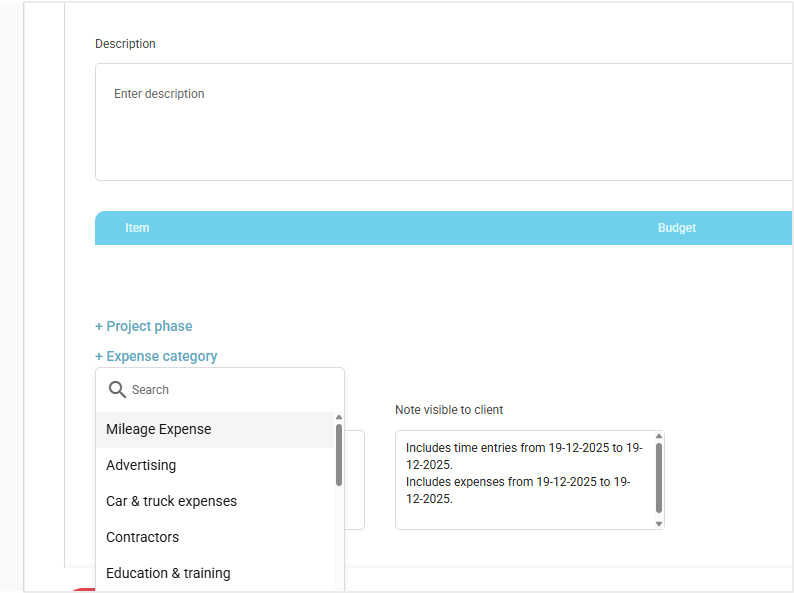
Click + Expense category near the bottom of the invoice template.
Select Mileage from the category list.
Mileage expense behavior on the invoice
The Mileage expense is added to the Expenses section of the invoice. The expense row includes:
A Description field (placeholder: Enter description)
A value in the Budget column
A value in the % column
A value in the To date column
A value in the Previous amount column
A Tax group drop-down selector
A Current amount input
A Trash bin icon to delete the expense row

Mileage expense amounts are included in the Expenses Total calculation at the bottom of the section.
IMPORTANT INFORMATION
The Mileage expense option must be enabled to access mileage-specific fields and calculations.
Mileage expenses are calculated automatically based on distance and rate per kilometer.
Mileage expenses behave like standard expenses when invoiced and are included in totals.
Deleting a mileage expense removes it from all related calculations.
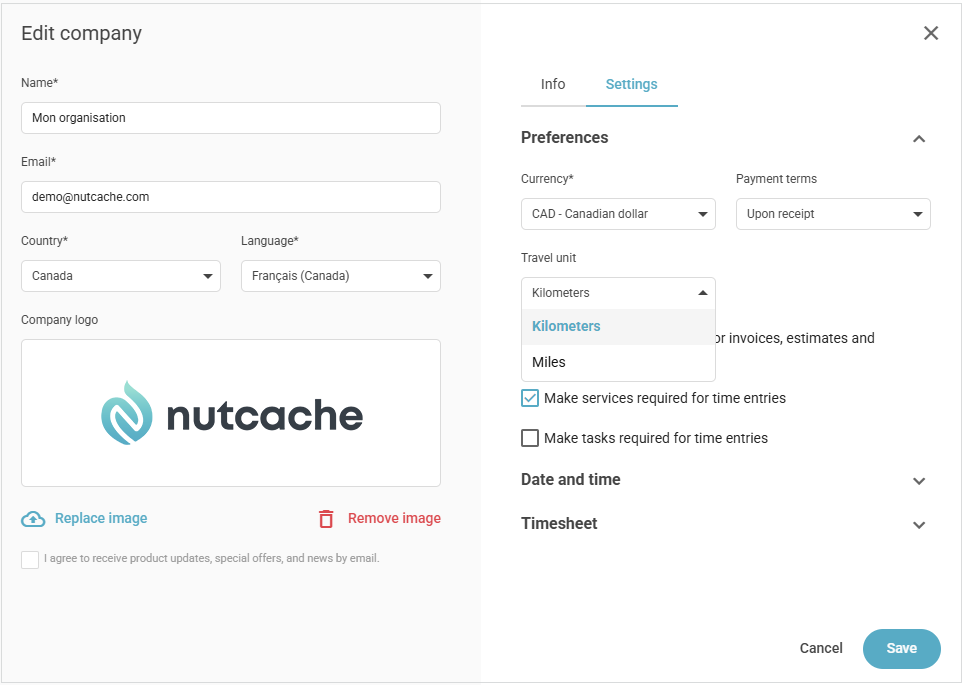
NOTE: You can set up the default travel unit from your company settings.
Need a hand?
Our team can help you find the answer.
Contact us