
How to use the all phases view
Written by Nutcache Team
Updated
Overview
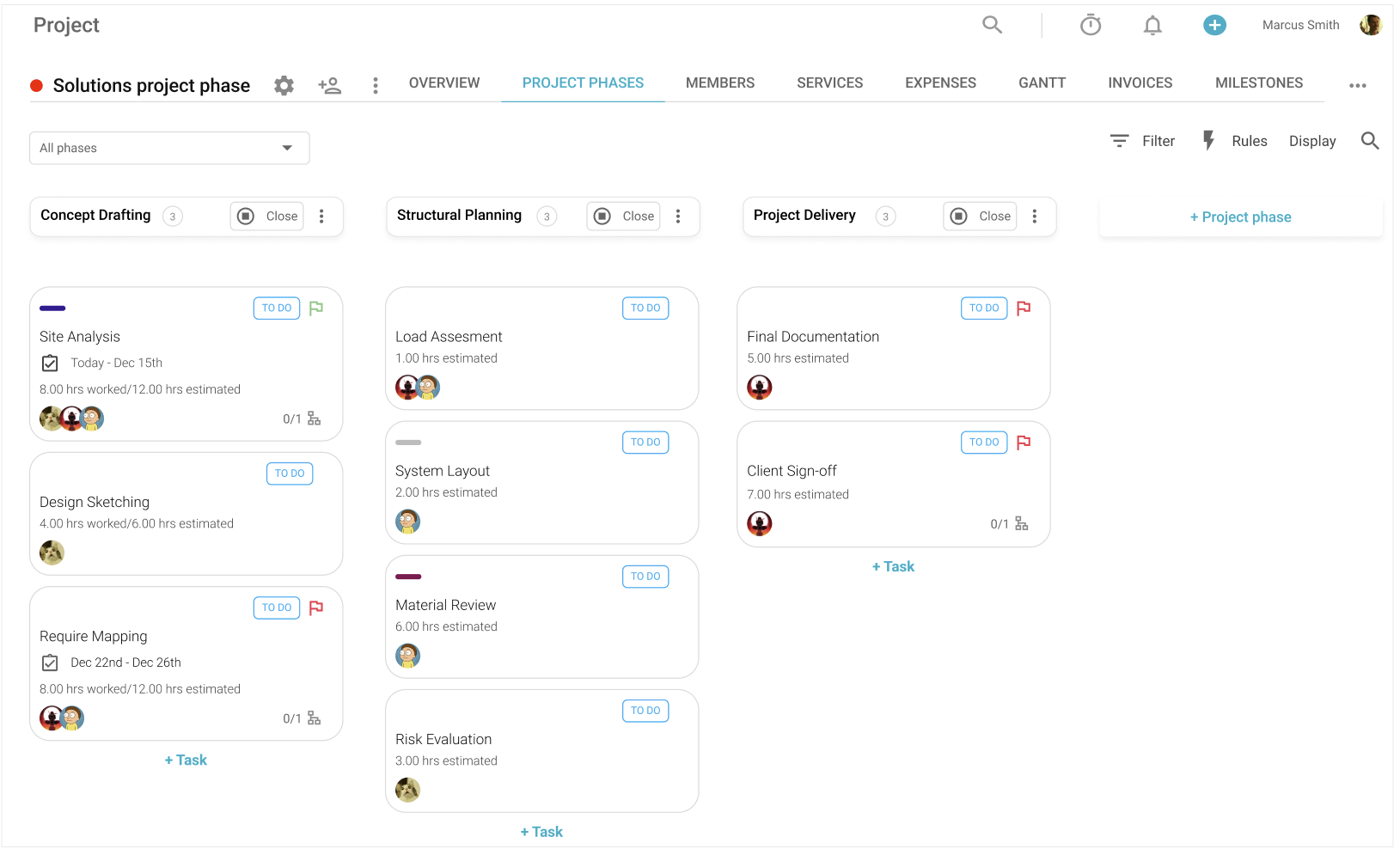
The All phases view lets you consult, create, modify, and manage several project phases and their tasks from a single place.
Instead of opening each project phase separately, you can use the All phases view to see your project structure at a glance. Each phase appears as a column, and the tasks related to that phase are displayed directly below it.
This view is useful when you want to:
review all project phases in one place;
create new phases quickly;
add tasks to the right phase;
edit phase names inline;
open or close phases;
view the number of tasks in each phase;
follow budget progress for phases with an hourly budget;
filter your board by one or more phases.
Who can use this feature?
The All phases view is available to Regular members and above.
It is available on the Free plan and above.
Note: The All phases view is not available for Scrum projects.
Where can I find this feature?
You can find the All phases view in the Project module.
To access it:
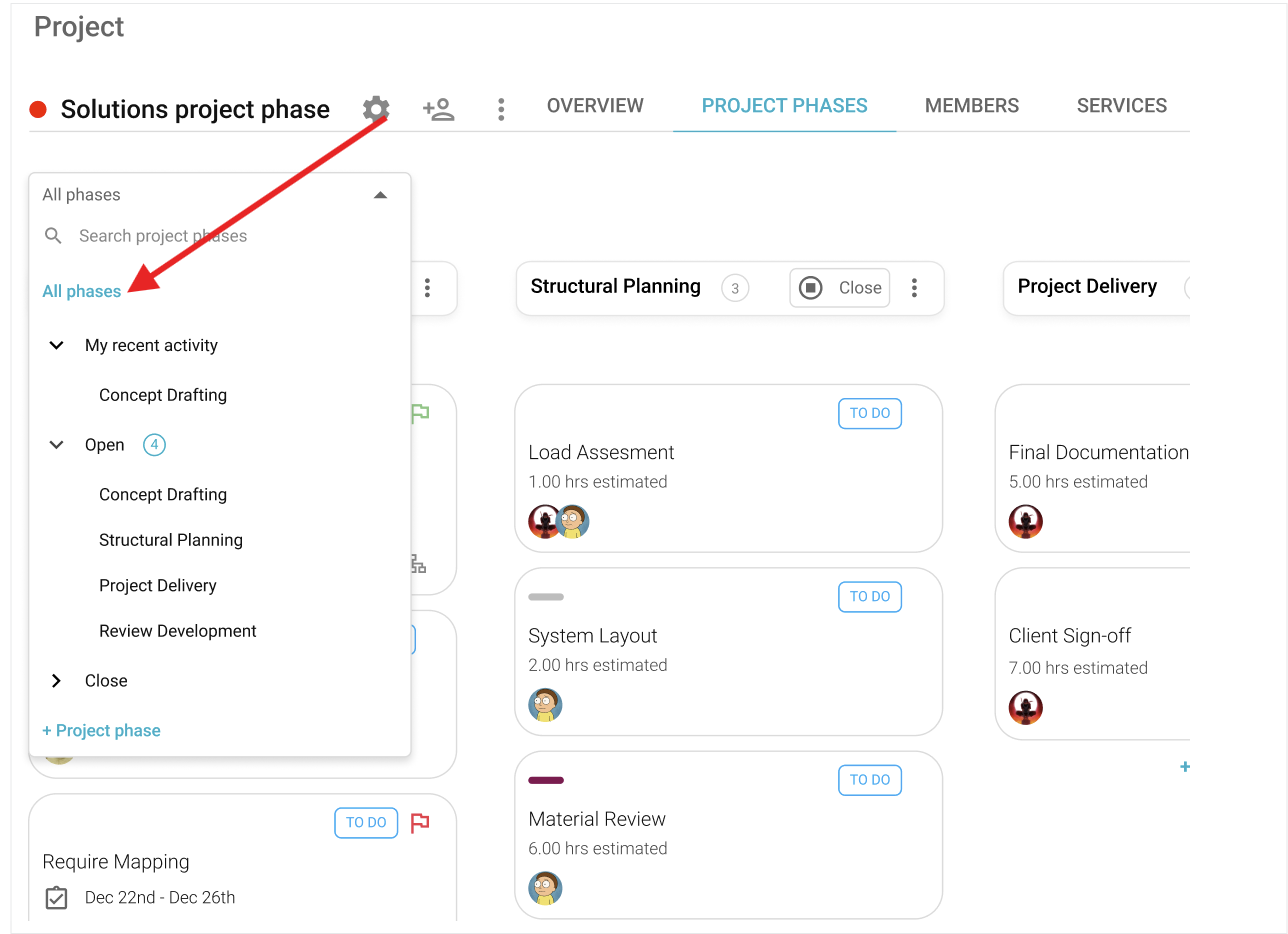
Open a project.
Go to the Project phases tab.
Open the Select project phases dropdown.
Select All phases.
The All phases option is always displayed at the top of the dropdown list, above My recent activity.
What appears in the All phases view?
In the All phases view, each project phase is displayed as a column.
A phase column may show:
the phase name;
a task counter, when the phase contains tasks;
a budget progress bar, when an hourly budget is set for the phase.
Tasks are displayed below the phase they belong to. Each task card keeps its usual behavior and includes a status label, such as To do, Doing, or Done.
How task counters work
Task counters are displayed on phase columns when tasks exist in a phase.
The counter follows these rules:
no counter is displayed when the phase has no tasks;
the exact number is displayed from 1 to 99 tasks;
99+ is displayed when the phase contains 100 tasks or more.

How to create a project phase
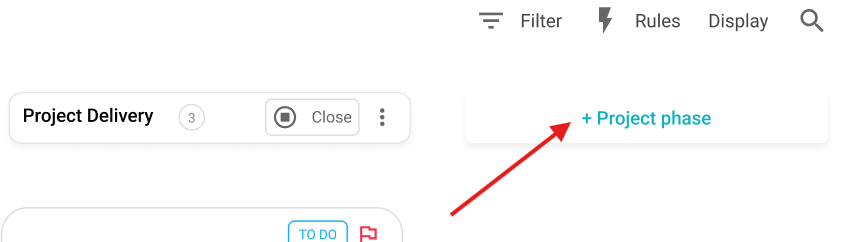
In the All phases view, you can create a phase directly from the page.
To create a phase:
Click + Project phase.
Enter the phase name.
Press Enter or click outside the field.
If the field is empty, no phase is created.
If a phase name is entered, the new phase is created with the status Open and appears in the Select project phases dropdown.
How to edit a phase name
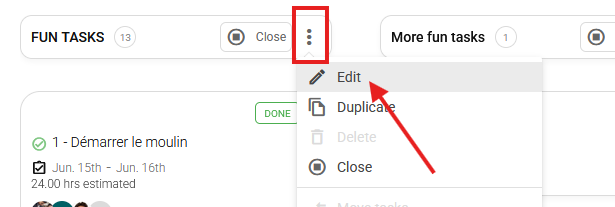
You can edit a phase name directly from the phase column.
To edit a phase name:
Click the phase name on the phase column.
Update the name.
Save your change by clicking outside the field.
The updated phase name is also reflected in the Select project phases dropdown.
How to close a phase
Click the Close button in the phase header. When a project phase is Closed, it is no longer displayed in the All phases view. To access or edit it again, you must first reopen it from its individual phase view.

Note: Closed phases cannot be reopened directly from the All phases view. You must first open the closed phase from the dropdown list, then use the Reopen option from the phase menu.
How to reopen a closed phase
Open the Select project phases dropdown.
Locate the closed phase under the Closed section.
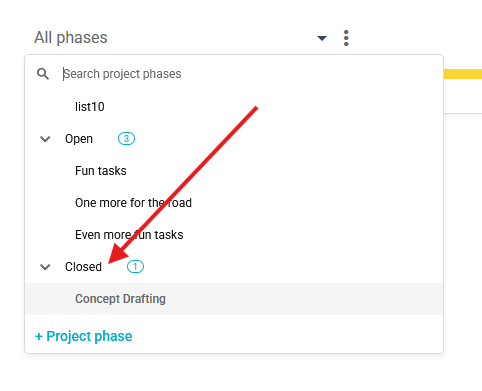
Select the closed phase to open its individual phase view.
Click the three-dot menu in the upper-right corner of the phase.
Select Reopen.
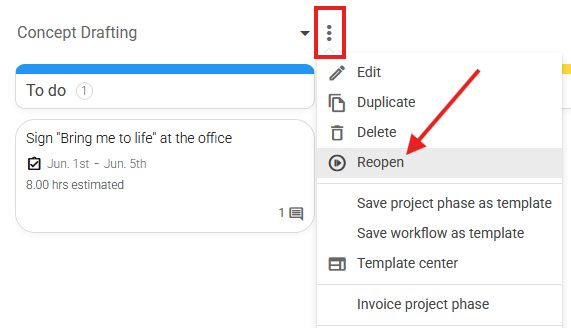
Once reopened, the phase becomes active again and can be accessed from the regular project phase views.
How to add a task under a phase - More info
Tasks are created directly under the phase they belong to.
To add a task:
Go to the phase where you want to add the task.
Click + Task.
Enter a task name.
Optionally select a date range or assign members.
Click Save.
The task is created under the selected phase and becomes visible in both the All phases view and the individual phase view.
How to edit a task - More info
To edit a task, click the task card. The task pop-up opens in editable mode. Any changes made in the task pop-up are reflected in:
the All phases view;
the corresponding individual phase view.
How to change a task status - More info
Tasks display a status label, such as To do, Doing, or Done. The task status cannot be changed directly from the task mini card.
To change a task status:
Click the task to open the task pop-up.
Change the task status in the pop-up.
Close the pop-up.
The updated status is displayed on the task card.
Task actions available on hover
When you hover over a task, the following actions are available:
Clock: start a timer or add time manually;
Calendar: select a date range;
+ Member: assign one or more users;
Checkmark: mark the task as Done;
Three-dot menu: duplicate, move, copy URL, follow, mirror, manage blockings, or delete the task.
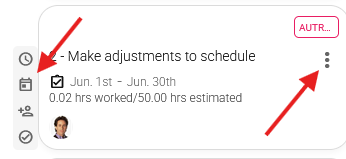
How to move tasks between phases
Tasks can be moved using the Move tasks option from the phase’s three-dot menu.
When tasks are reassigned to another phase or status, the changes are reflected in:
the All phases view;
the individual phase views affected by the change.
Note: Tasks cannot be dragged between phases.
How to filter by phase
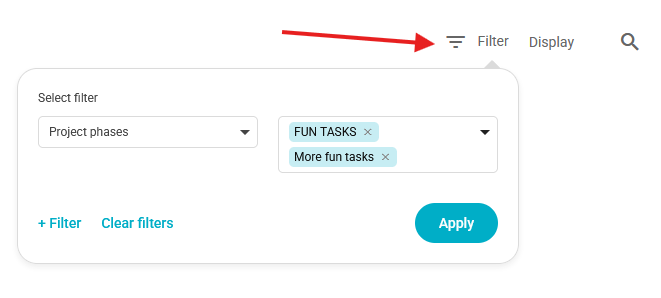
The All phases view includes a Phase filter option.
To filter by phase:
Open the filter options.
Select Phase.
Choose one or more phases.
The view updates to show the information that matches your selected phase filter.
How budget progress is displayed
When the project budget type is set to Per project phase, and a non-zero hourly budget is defined for a phase, a budget progress bar appears on the phase column.
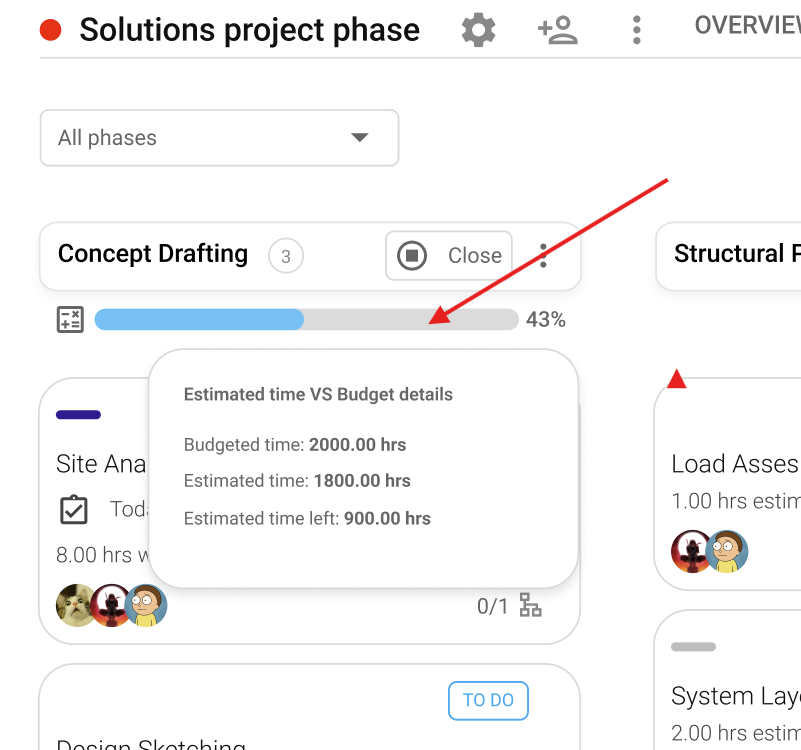
To view more details, hover over the budget progress bar. A popup displays the Estimated time vs Budget details.
What happens in new projects?
For new projects, the All phases view is selected by default in the Project phases tab.
The default phase is named 1.0 - Phase and is created with the status Open.
What happens in existing projects?
For existing projects, Nutcache remembers the last view you consulted.
When you return to the Project phases tab, Nutcache restores your last selected view, whether it was All phases or a specific project phase.
IMPORTANT INFORMATION
The All phases view is not available for Scrum projects.
Phases and tasks cannot be dragged to change their order or move them between phases.
A closed phase prevents task creation, task editing, and time entries.
Task status can only be changed from the task pop-up or from the Move tasks pop-up.
Phases with time entries, timers, or expenses cannot be deleted.
Need a hand?
Our team can help you find the answer.
Contact us