
How to manage overtime hours when approving timesheets
Written by Nutcache Team
Updated
The overtime bank allows you to add extra worked hours to a member’s bank or use banked hours to compensate for missing hours when approving a timesheet.
When a member’s worked hours differ from their default working hours, Nutcache can prompt the approver to decide whether the difference should affect the overtime bank.
Availability: The overtime bank is available with the Enterprise plan.
Who can manage overtime hours?
Overtime hours can be managed when approving timesheets by:
Administrators and Owners, for all members;
Project Managers, for members and timesheets they are authorized to manage.
Where are overtime hours managed?
Go to: Time Tracking → Approvals
Depending on your company settings, timesheets can be approved:
Daily and weekly; or
Weekly only.
The timesheet approval mode is configured under:
Company settings → Settings → Timesheet
How are overtime hours calculated?
When a timesheet is approved, Nutcache compares the member’s worked hours with their default working hours.
Only worked hours are used for this calculation. Billable hours do not determine the impact on the overtime bank.
For daily approvals, Nutcache compares the member’s worked hours with their default daily hours.
For weekly approvals, Nutcache compares the total worked hours with their default weekly hours.
Nutcache determines the applicable default hours in the following order:
The member’s default working hours, if defined;
The company’s default working hours, if defined;
The system default of 40 hours per week, or 8 hours per day from Monday to Friday.
Approving a timesheet with no difference in hours
If the member’s worked hours are equal to their default hours, the timesheet is approved normally. No overtime confirmation window is displayed, and the overtime bank is not affected.
Example
A member’s default weekly schedule is 40 hours and they worked 40 hours. The week is approved for 40 hours and no changes are made to the overtime bank.
Approving extra hours
When a member works more than their default hours, Nutcache displays a confirmation window during approval.
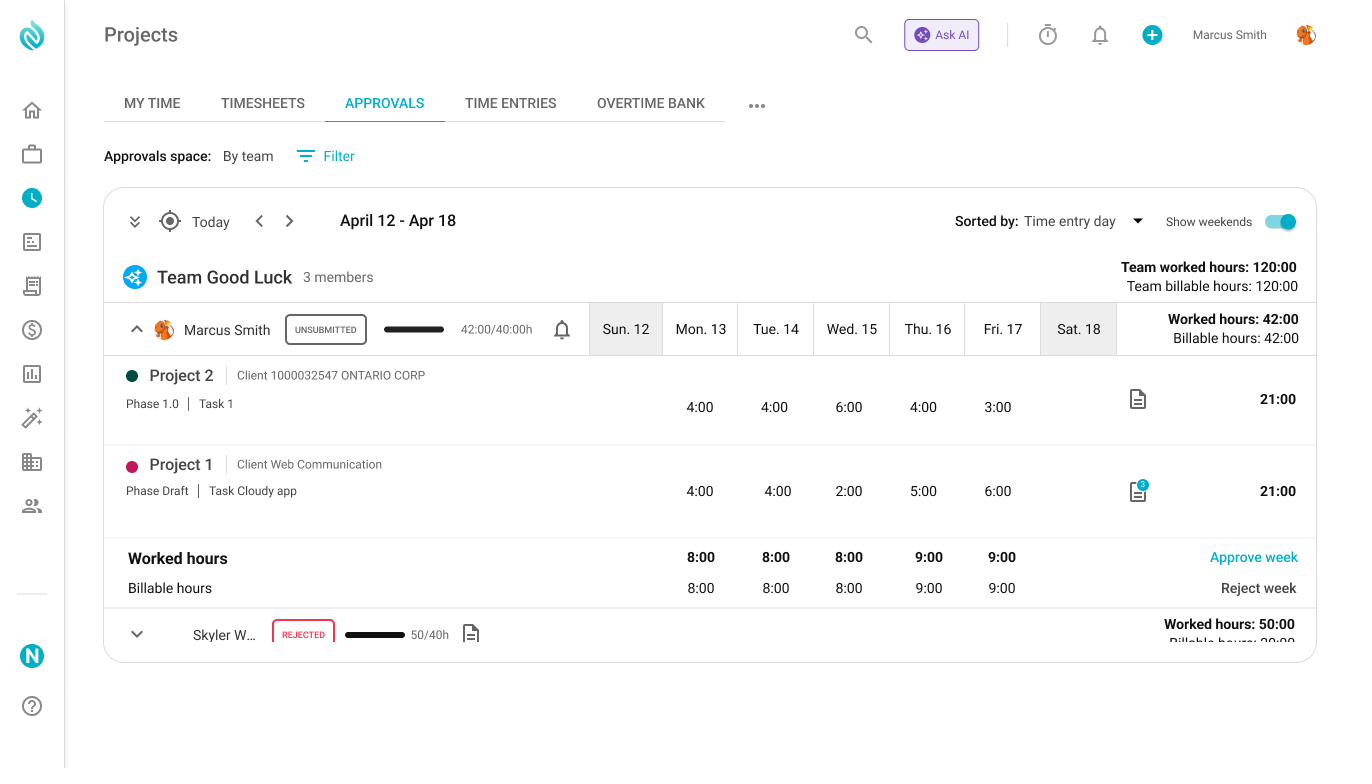
A weekly timesheet with 42 worked hours against a default of 40 hours.
You can choose between two options.
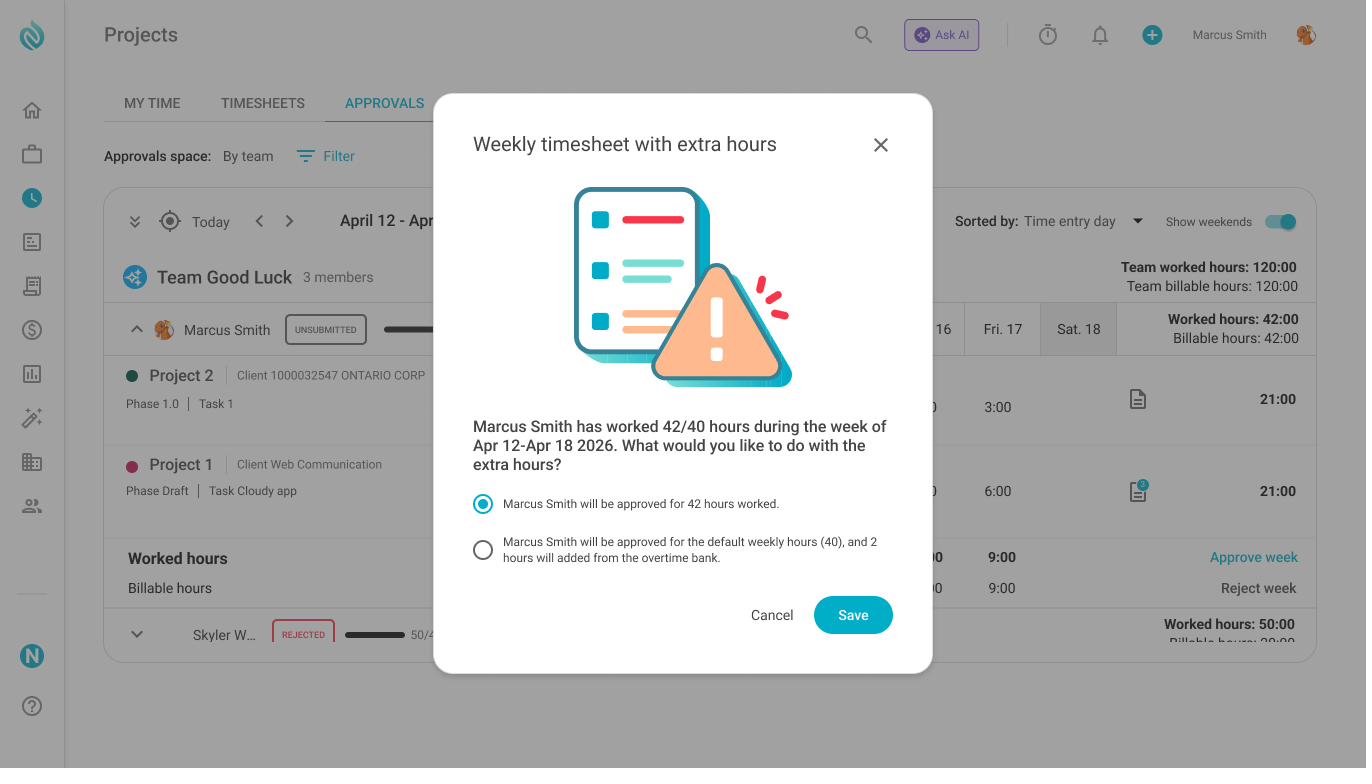
The confirmation window lets you approve all worked hours or add the extra hours to the overtime bank.
Approve all worked hours
The member is approved for all hours worked. The overtime bank is not affected.
Example
Default weekly hours: 40 hours
Worked hours: 44 hours
If you approve all worked hours, the timesheet is approved for 44 hours and the overtime bank remains unchanged.
Add the extra hours to the overtime bank
The member is approved for their default hours, and the difference is added to their overtime bank.
Using the same example:
Default weekly hours: 40 hours
Worked hours: 44 hours
The timesheet is approved for 40 hours, and 4 hours are added to the overtime bank.
When hours are added to the bank, an Overtime hours section appears on the approved timesheet showing the overtime adjustment.
Approving missing hours
When a member works fewer hours than their default hours, Nutcache also displays a confirmation window. You can choose between two options.
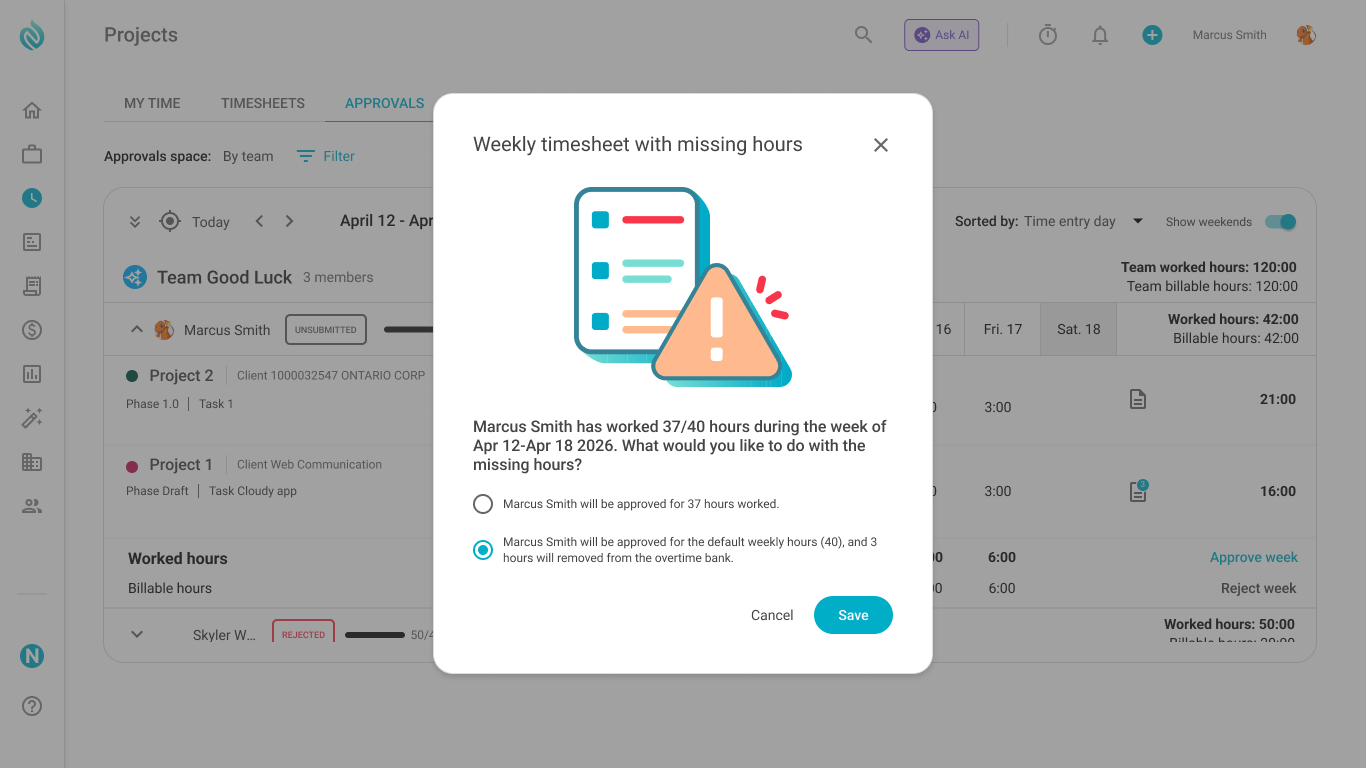
When hours are missing, you can approve only the hours worked or use hours from the overtime bank.
Approve only the hours worked
The member is approved for the actual number of hours worked. The overtime bank is not affected.
Example
Default weekly hours: 40 hours
Worked hours: 36 hours
If you approve the actual hours worked, the timesheet is approved for 36 hours and the overtime bank remains unchanged.
Use hours from the overtime bank
The member is approved for their default hours, and the missing hours are removed from their overtime bank.
Using the same example:
Default weekly hours: 40 hours
Worked hours: 36 hours
The timesheet is approved for 40 hours, and 4 hours are removed from the overtime bank.
The adjustment is also displayed in the Overtime hours section of the approved timesheet.
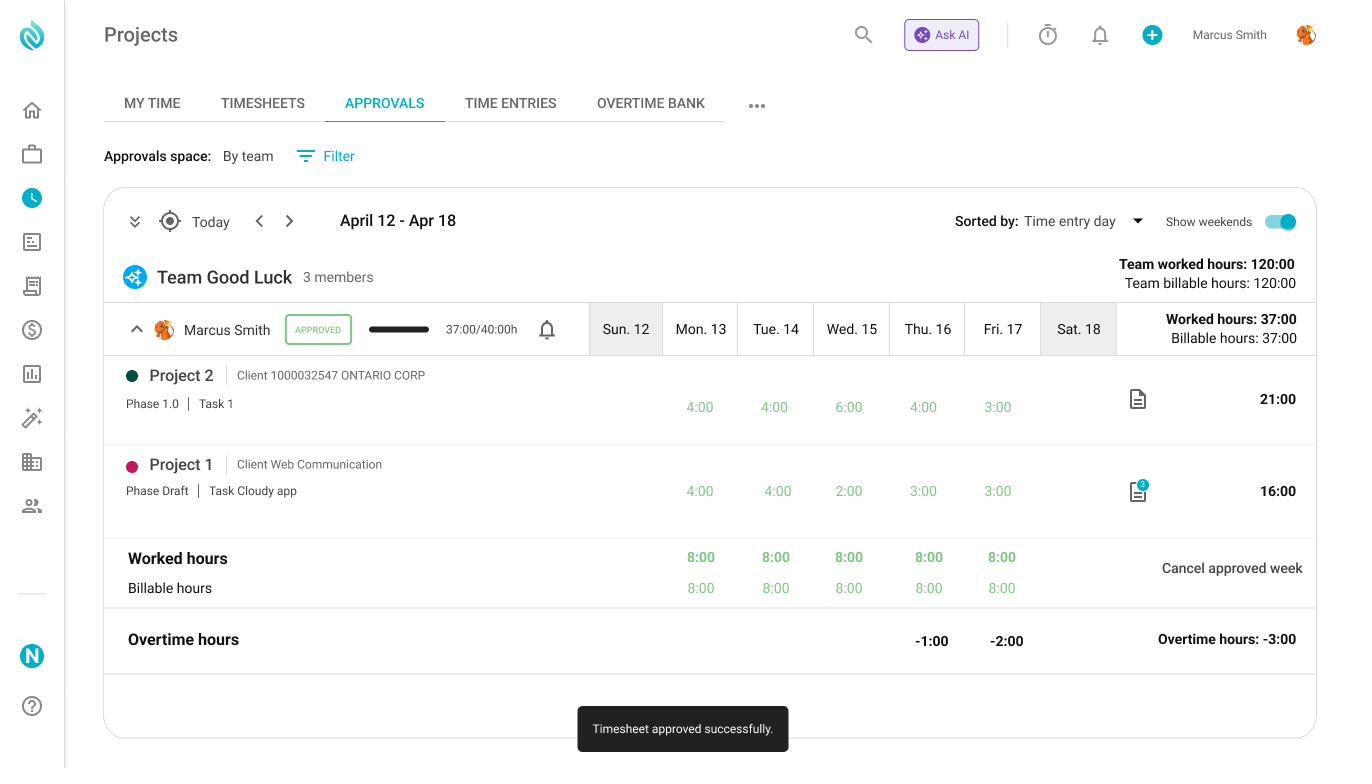
Once approved, the Overtime hours section shows the adjustment made to the bank (here, −3:00).
Daily vs. weekly approvals
The overtime calculation depends on how the timesheet is approved.
Daily approval
Each day is evaluated independently.
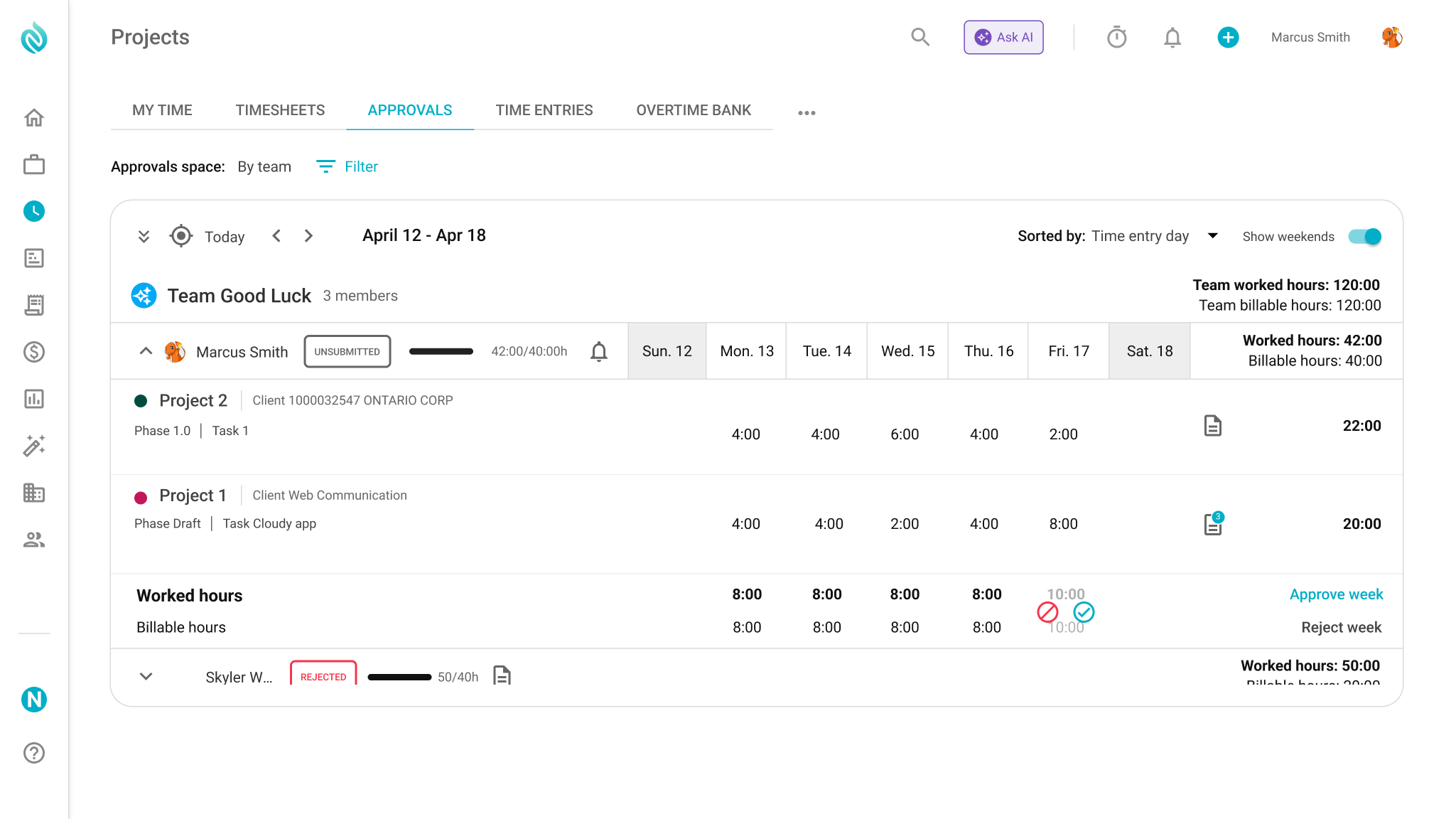
With daily approval, each day can be approved or rejected on its own. Here, Friday has 10 worked hours against a default of 8.
For example, if a member’s default day is 8 hours and they work 10 hours, the approver can either:
Approve all 10 worked hours without affecting the overtime bank; or
Approve 8 hours and add the remaining 2 hours to the overtime bank.
The same logic applies when the member works fewer than their default daily hours.
Weekly approval
Nutcache evaluates the total number of hours worked during the week against the member’s default weekly hours.
This means that higher hours on one day can offset lower hours on another day before the weekly overtime difference is calculated.
How the overtime bank start date affects approvals
Each member can have a Bank of hours start date, configured under:
Members → Member information → Overtime bank settings
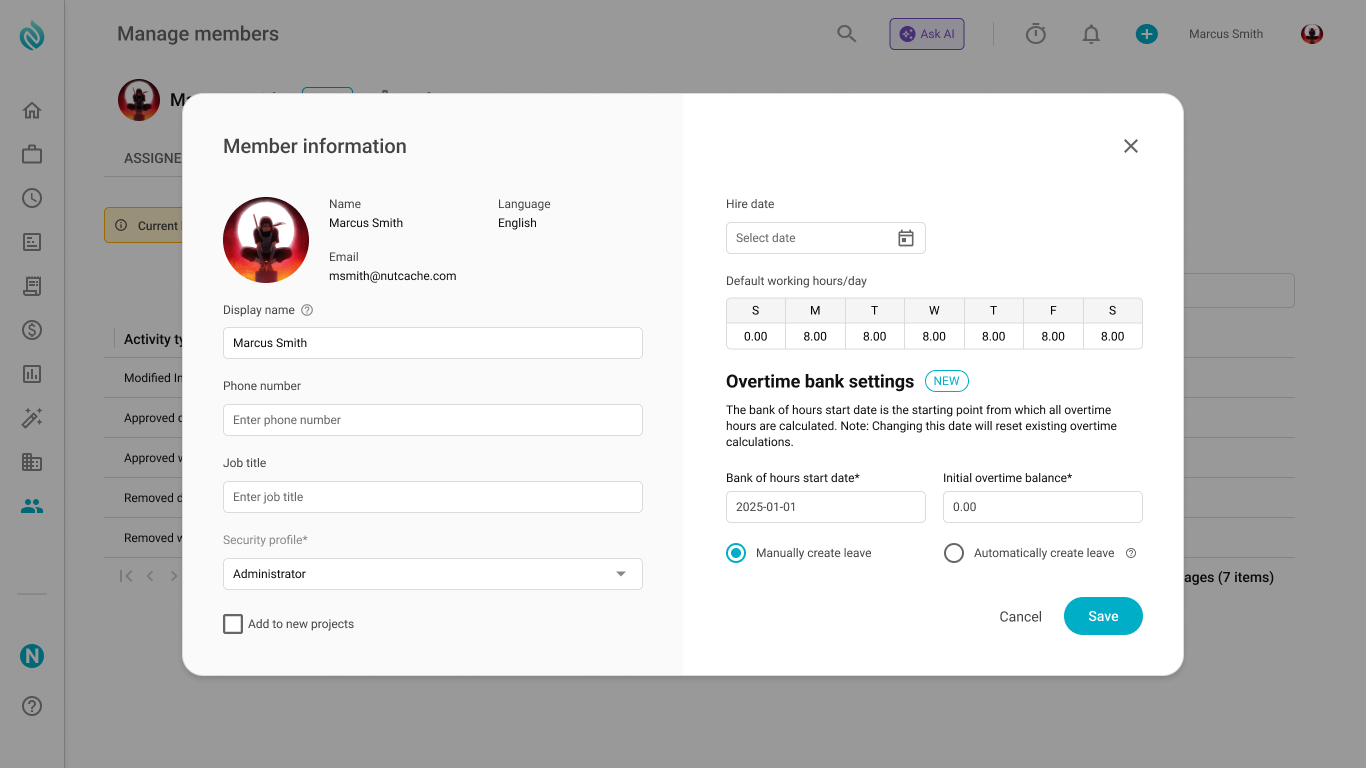
The Bank of hours start date is set in the Overtime bank settings of the Member information window.
The overtime bank does not apply to activity that takes place before this date.
Before the start date
Timesheet approvals are handled as regular paid hours.
No overtime bank confirmation window is displayed;
The overtime bank is not affected;
No overtime activity is created for the approval.
On or after the start date
The normal overtime approval process applies. If worked hours differ from the applicable default hours, the approver can decide whether the difference should affect the overtime bank.
When the start date falls in the middle of a period
For daily approvals, each day is evaluated separately. Days before the start date do not affect the bank. Days on or after the start date use the normal overtime approval process.
For weekly approvals, the entire week is treated as one approval period. If the overtime bank start date falls anywhere within the week, the entire week becomes eligible for the overtime bank decision.
What happens when an approval is cancelled?
If you cancel the approval of a timesheet that previously affected the overtime bank, Nutcache reverses that overtime adjustment.
The overtime section is removed from the timesheet, the original worked hours are restored where applicable, and the overtime bank balance is recalculated.
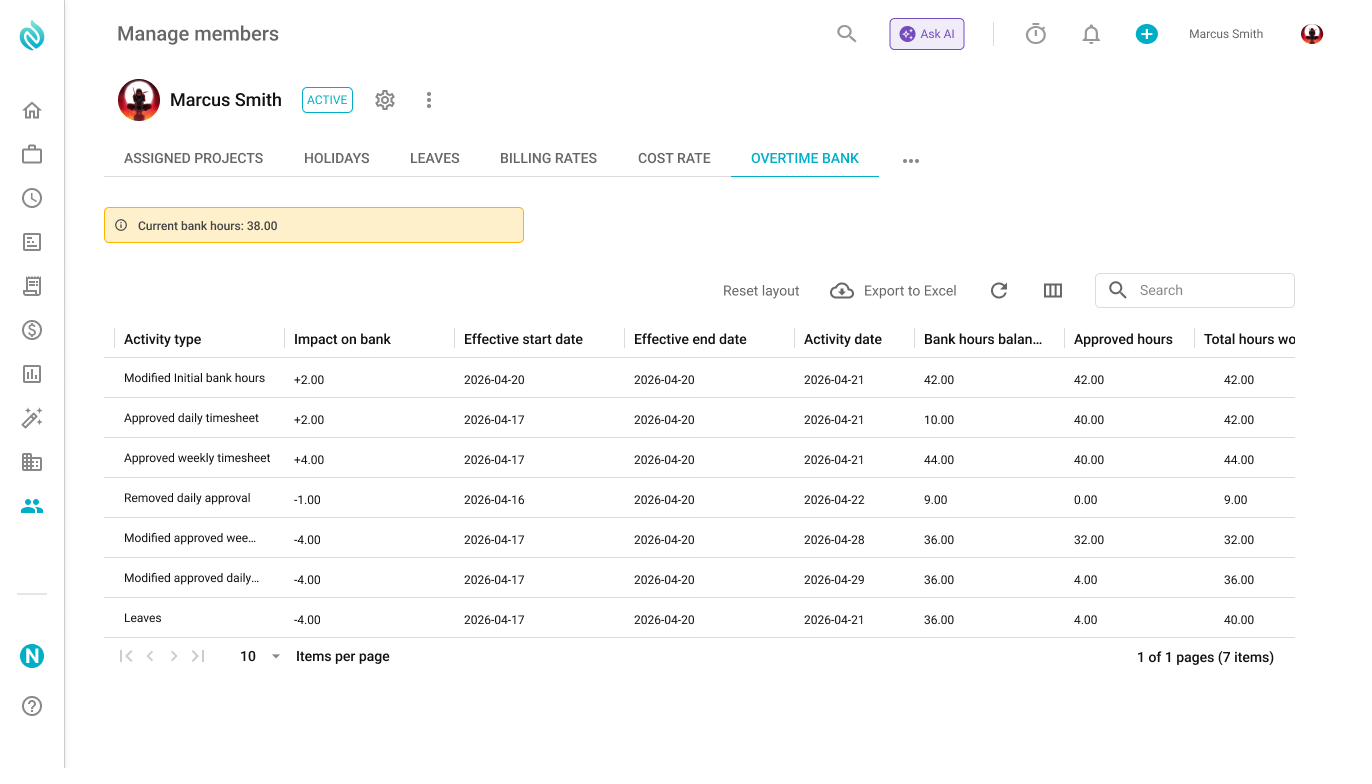
Each approval, cancellation or modification is logged in the member’s Overtime bank tab, along with its impact on the bank.
Approving an entire week after individual days were approved
If some days in a week were previously approved individually and you later approve the entire week, Nutcache recalculates overtime using the weekly total.
Previous daily overtime adjustments may therefore be reversed or replaced by a new weekly overtime adjustment.
If the total weekly worked hours equal the default weekly hours, no overtime adjustment is required, and any previous overtime added to or removed from the bank through daily approvals is reversed.
Previously approved timesheets
When the new overtime approval behaviour is introduced, timesheets that were already approved are not presented to approvers again.
For historical approvals:
Timesheets approved before the member’s overtime bank start date are treated as paid hours and do not affect the bank;
Timesheets approved on or after the start date are treated according to the overtime behaviour that applied when they were originally approved.
No retroactive overtime confirmation window is displayed.
Important information
Only worked hours are used when calculating overtime.
An overtime adjustment is made only when worked hours differ from the applicable default hours and the approver chooses to affect the bank.
Approving the actual worked hours does not change the overtime bank.
Cancelling or modifying an approval can reverse an existing overtime adjustment.
A member’s overtime bank start date determines when overtime tracking begins.
To review balances for all members at a glance, open the Overtime bank tab in Time tracking.
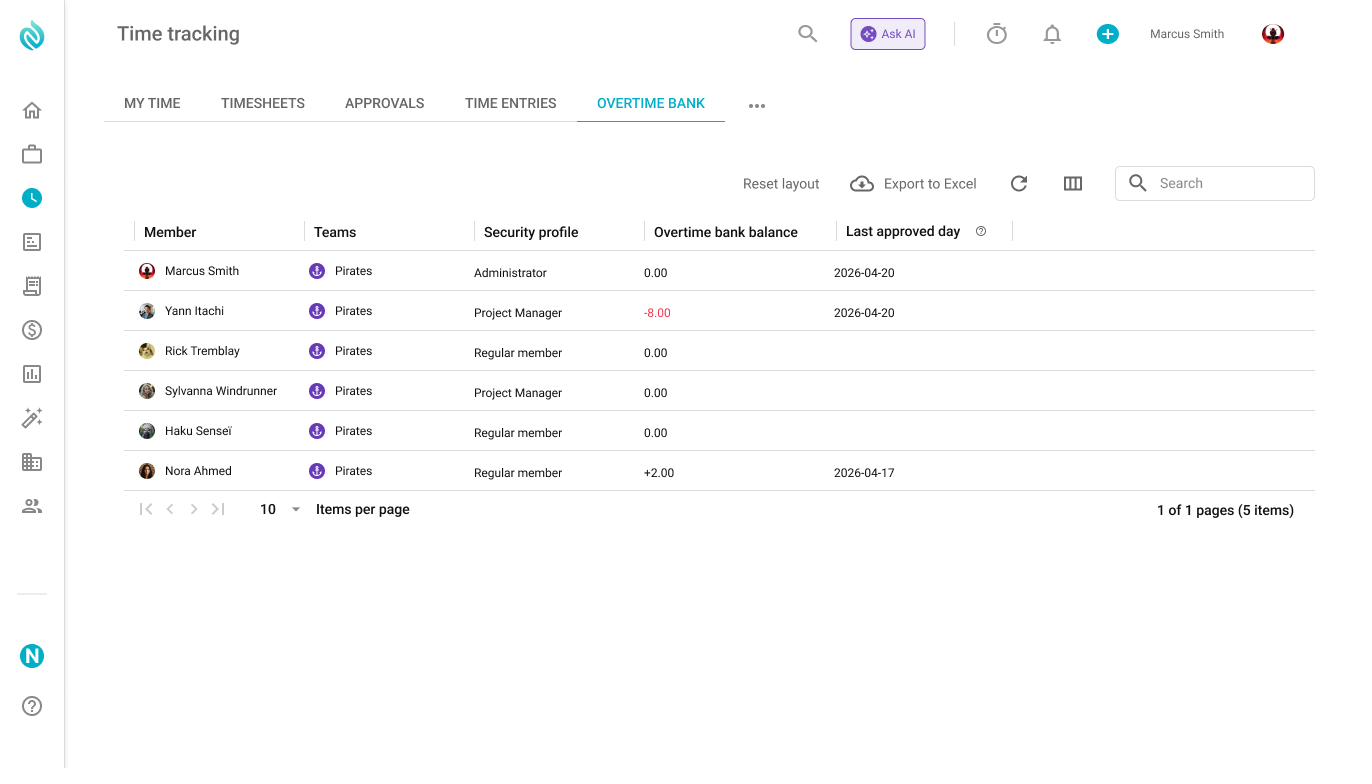
The Overtime bank tab in Time tracking shows each member’s current balance and last approved day.
Need a hand?
Our team can help you find the answer.
Contact us