
How to create a product
Written by Nutcache Team
Updated
Overview
Basically, all companies looking for Nutcache sell products or services and, to organize all these items in one place, Nutcache users have a Products section, within the Organization menu.
Here you will learn how to create new products, import information from existing products and organize them in the best way so that your business remains well structured and your employees can work more quickly and accurately from existing Products.
Who can use this feature?
Members with the status of Project manager or higher can manage products.
Where can I find this feature?
You can create and edit new products from the Company module located on the application left side menu.
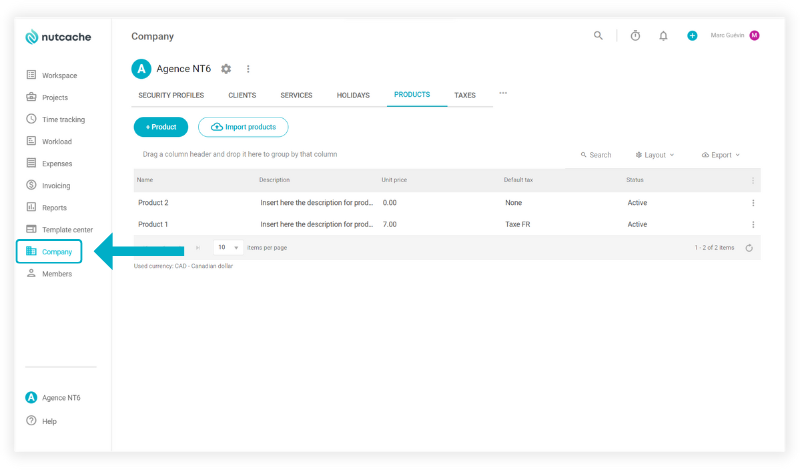
How to create a new product?
Go to the Company module (1), select the Products (2) tab on the top menu and then click on + Product (3):
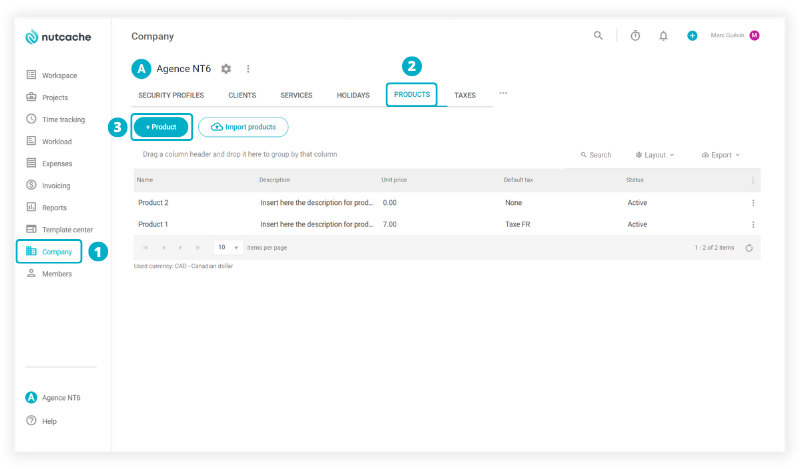
A popup will appear with empty fields for important information regarding the new product you’re creating.
To create a new product:
Enter a name for this product.
Then click inside the Description field and enter a description regarding your product.
Click inside the Unit price field and add a price for your product.
Select the status for the new product.
At least, select the Default tax for this product from the existing taxes you already created.
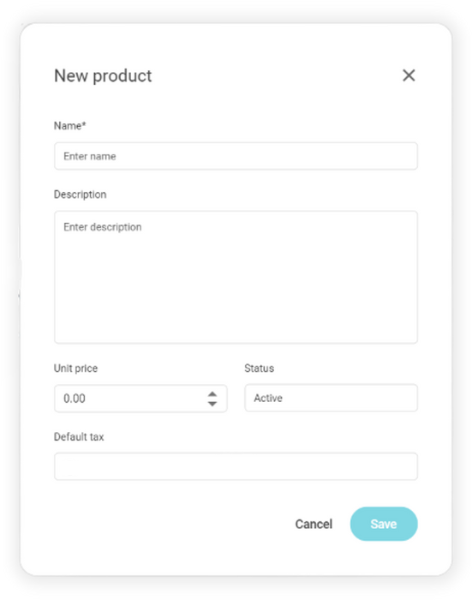
Once you’re done filling up the fields, you can Save.
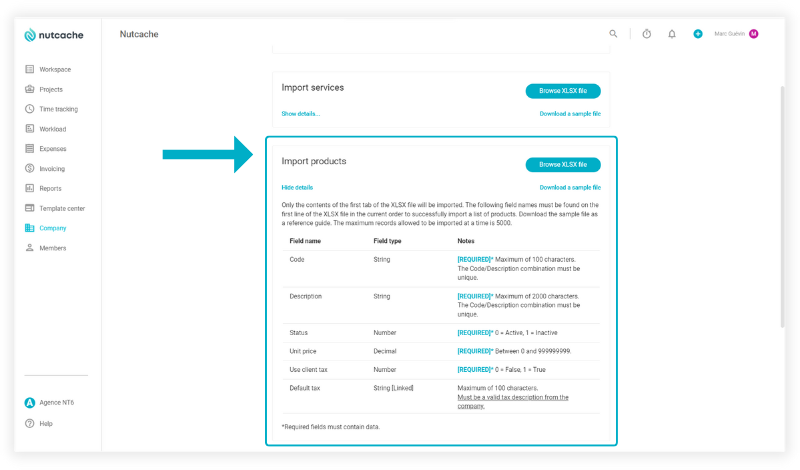
NOTE: You can also import products in bulk-mode from a XLSX file. Here’s how you can do it:
1) Click on the Import Products button
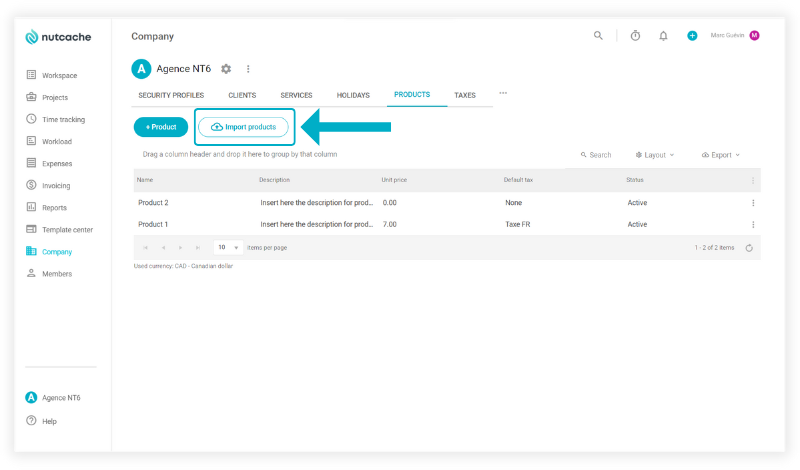
2) Hover to the Import products section, where you can find details about the configuration of the spreadsheet and also download a sample file to fill up.
How to edit or delete an existing product?
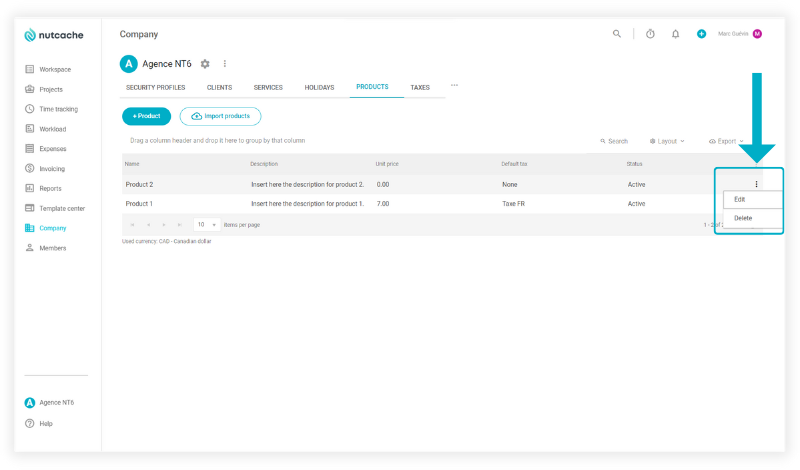
Still from the Products tab on the top menu inside the Company section, hover over the souvlaki menu on the right side of any of your existing products and select the Delete or the Edit button.
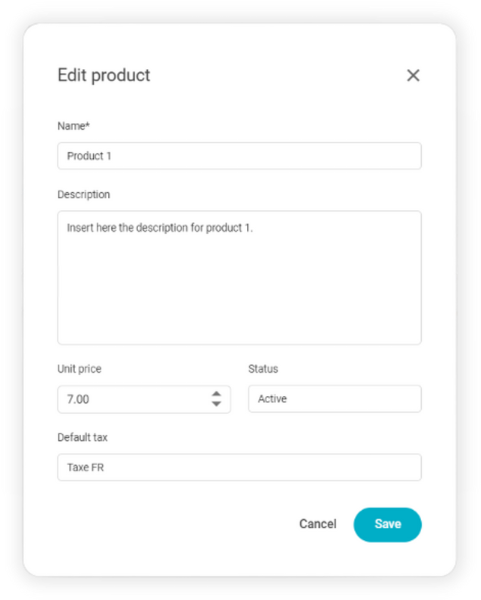
Editing a product is very similar to creating one, so you just have to update the information inside the fields and click on Save.
Need a hand?
Our team can help you find the answer.
Contact us