
How to manage members
Written by Nutcache Team
Updated
Overview
The Members section is where you manage the people in your Nutcache organization. From there, you can invite new members, assign security profiles, organize teams and roles, manage workload and availability, and define member billing rates.
Keeping member information up to date helps you control access, plan resources more effectively, and maintain accurate budgets and invoices.
Who can use this feature?
The Members section is available to users with the appropriate permissions in Nutcache. Depending on your security profile and plan, you may be able to:
invite and manage members
assign security profiles
create teams and roles
define workloads and availability
manage member billing rates
Where can I find this feature?
Go to Members from the main menu.
From there, you can:
view your list of members
invite new users
update member details
activate or deactivate members
manage teams and roles
define workload settings
manage billing rates
How to manage members
Add a new member
Open the Members section.
Click the option to add or invite a new member.
Enter the member’s information.
Assign the appropriate security profile.
Send the invitation.
Assign a security profile
Security profiles define what each member can see and do in Nutcache.
To assign or update a profile:
Open the Members section.
Select the member you want to edit.
Save your changes.
Invite a guest user
If someone only needs limited access, you can invite them as a Guest. This is useful for collaborators or stakeholders who need visibility on a project without full access to the account.
Activate or deactivate a member
You can deactivate a member when they no longer need access, while keeping their historical data in Nutcache.
To do so:
Open the Members section.
Locate the member in the list.
Use the available action to activate or deactivate the member.
Organize members into teams
You can group members into teams to make resource management and assignment easier.
To create or manage a team:
Go to the Members section.
Open the Teams view.
Add members to the team.
Save your changes.
Assign roles to members
Roles help identify each member’s function or specialty in your organization.
They can be useful for staffing, planning, and workload distribution.
To assign a role:
Open the Members section.
Select a member.
Save your changes.
Define workload and availability
You can define each member’s daily workload to improve planning accuracy.
You can also manage availability through holidays and leaves, depending on your organization’s setup.
To update workload settings:
Open the Members section.
Select a member.
Save your changes.
Manage member billing rates
Nutcache also lets you manage member billing rates directly from the Members section.
This is especially useful for long-running projects, where a member’s billing rate may change over time due to promotions, salary adjustments, or changes in billing strategy.
Each member now includes a dedicated tab where you can define multiple billing rates by date range.
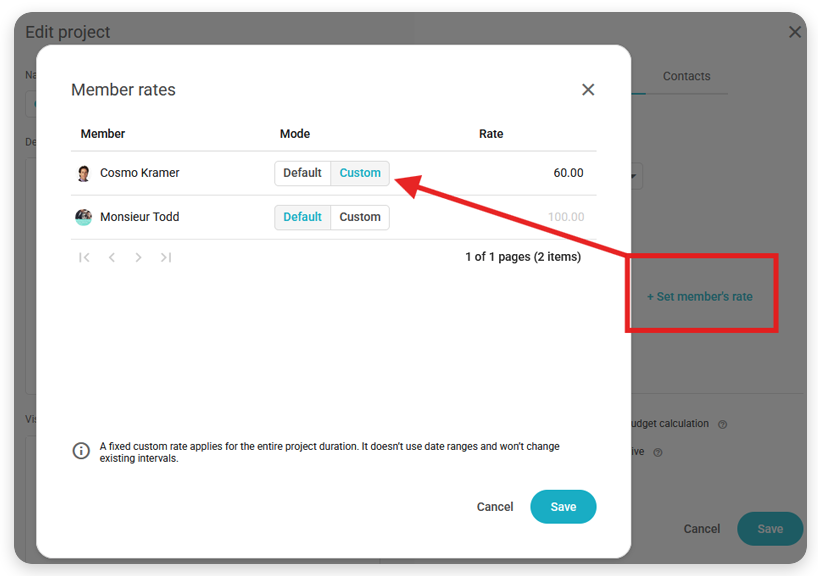
Once these rates are set, they can be used automatically in projects billed by hourly rate. You can still keep a single rate over time by:
selecting the Custom setting, or
leaving multiple date-based rates undefined
When multiple rates are defined for a member and the Default setting is enabled, Nutcache automatically applies the rate that matches the date of the time entry for budget and invoicing calculations.
Why it matters
This improvement helps you:
keep billing accurate over long project timelines
reflect rate changes without manual recalculation
improve budget reliability
reduce invoicing errors
Manage member cost rates
A member’s cost rates represent how much that resource costs your company over time. Since internal costs can evolve, Nutcache lets you define multiple cost rates by date range for each member.
When several cost rates are defined, Nutcache automatically applies the one that matches the date of the time entry, helping you keep project costs, budgets, and profitability calculations accurate.
Important Information
The Members section centralizes user management in Nutcache
Member access depends on their assigned security profile
Deactivating a member preserves historical data
Teams and roles help organize your workforce more efficiently
Workload and availability settings improve resource planning
Member billing rates can now be defined by date range to support more accurate hourly budgeting and invoicing.
Need a hand?
Our team can help you find the answer.
Contact us